Alert Setup
Even when you are away from your store you need to know what is going on. With the Alerts function you can! You can set alert conditions and get notified when they are met.
Do you suspect an employee is abusing the system by voiding out too many orders? Get a 'near time' SMS alert on your mobile device letting you know when you need to look closer.

You can setup and configure three (3) types of alerts:
- Totals: orders that meet total value criteria
- Void Order: orders that were voided
- Promo Order: orders that were promoed
- To add a new alert choose

- to edit an existing alert choose the

- to delete an alert that is no longer needed use the
 button
The Add New and Edit screens are the same:

On the  tab enter a name for the alert and choose the transaction type message.
 Note: MSG Contents and MSG Filters will vary depending on which alert type is being configured
The  tab contains various fields to include in the alert message:
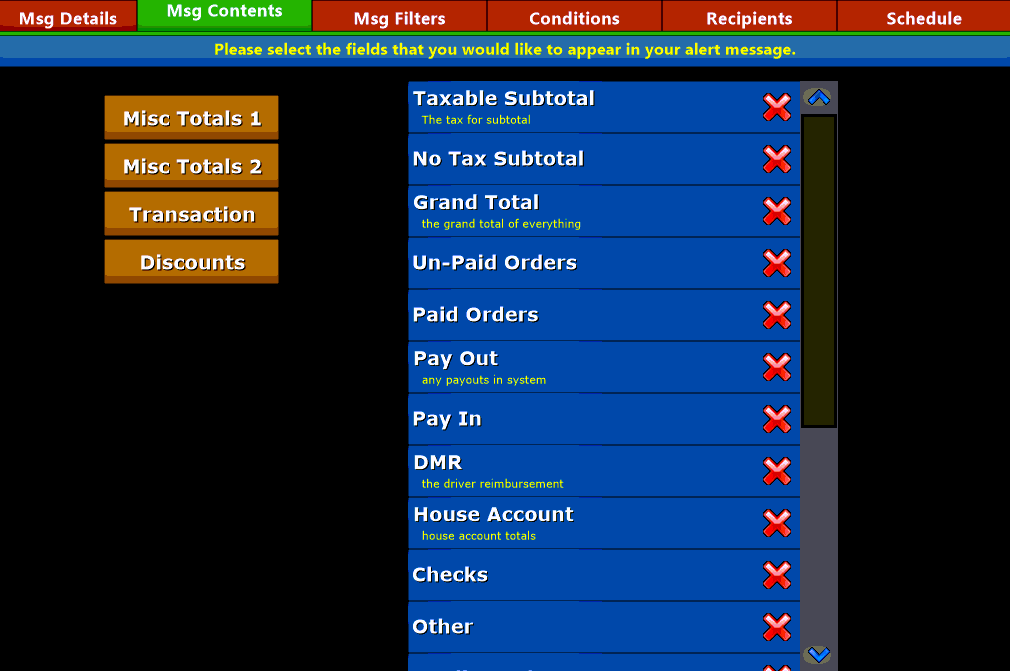
this section allows you to choose to include payment totals such as credit card sales or expected cash in the system
let's you include such things as waste totals, delivery information, house accounts and gift cards

this section allows you to chose information that includes Transaction Type totals, average sales and sales percentages
allows you to select to include discount information in the alert message

this section allows you to select voided order specific information such as OrderID, totals, when voided, employee information and void reason

this section allows you to select promoed order specific information such as OrderID, totals, type of discount, employee information and discount reason
The  tab let's you choose filter criteria. These filter criteria allow you to set the conditions that determine if an alert needs to be sent or not.

Depending on which message type is being edited the filter options will correspond with the Msg Contents that were available on the tab. Not all Msg content is able to be chosen as a filter so this list will contain numeric fields only and will exclude things such types as Employee ID and Name.
Any entry that is set as a Msg Filter will become available on the  tab:
tab:

Use the Conditions tab to configure the thresholds used to determine when a message is sent. Msg Filters are configured with conditional values to determine when to send an alert.
 Less than: used to alert when the number is less than the inputted value
 Less than or equal to : send an alert when the total is less than or equal to the value designated
 Equal: if the value is equal to the filter amount send an alert (this will only send if the value is exact not greater or lesser than)
 Greater than: used to alert when the number is greater than the inputted value
 Equal to or Greater than: send an alert when the total is equal to or greater than the value designated
Using the  tab allows you to set up the name and provider information for the alert recipients.

Select the  button and input the name, phone number and cell provider of the recipient.
Using the  tab you can set a schedule for when to send the alerts to your recipients. Each recipient can have their own day of week schedule as well as update times and intervals.
Send at pre-determined intervals. set the day of week as well as start and end times as well as how often to send (in 10-minute increments)

Send once at a pre-determined time during each designated day of the week
Send at End of Day (EOD)
