Hour Exception
The Hour Exceptions screen allows you to set certain days, or parts of days, as times that the store is not open. These are 'exceptions' to your normal business hours.
This is useful if you have a certain day of the year in which you are closed and want to set your Kiosk to automatically reflect the closed status.
The main screen shows any dates or times that you have already set up as exceptions:
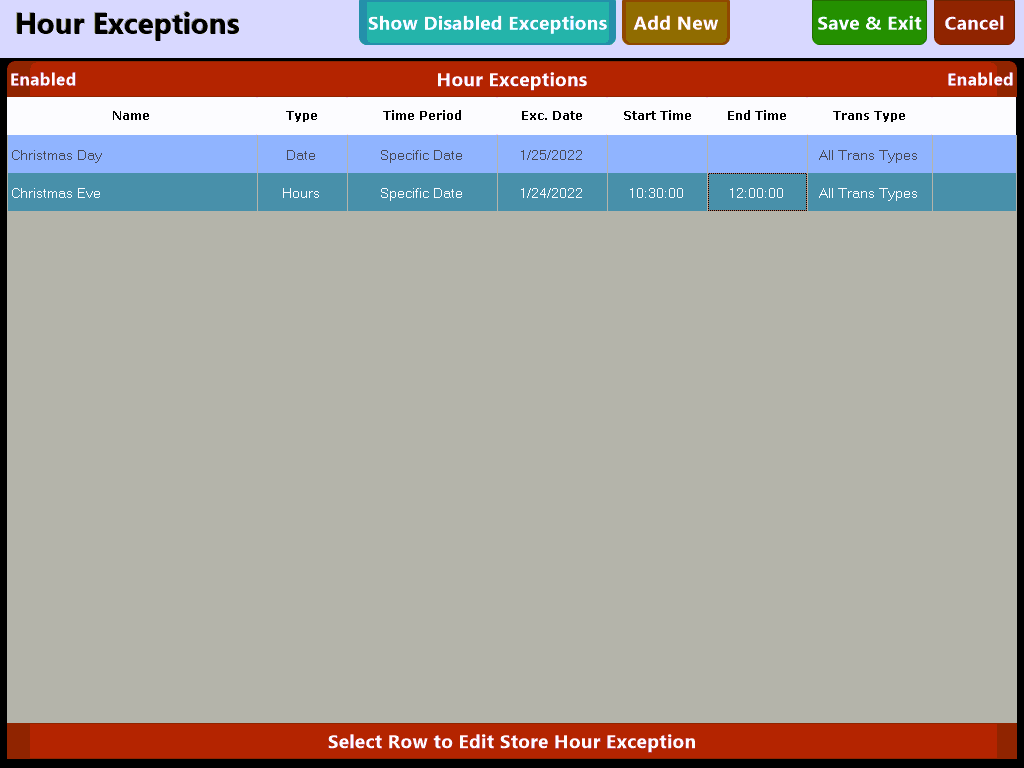
To add a new Exception to your store's hours select the  button and choose the type of Exception.
Available Exception types are Date and Hours: 
Choosing 'Date' allows you to quickly choose an entire business date to set as closed while 'Hours' gives you the option to choose specific hours to mark as closed.
If your store will only be closed for a portion of a day choose 'Hours' and set your times accordingly.
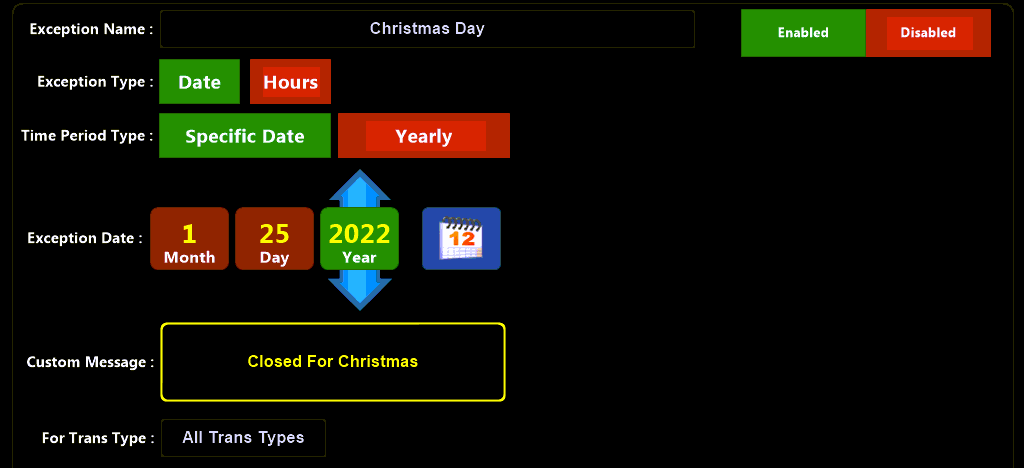
Add Exception (Date) allows you to set an entire business date as closed:
|
Exception Name |
A friendly name for use in the Manager screen (not shown to customers) |
|
Specific Date |
Sets a one time closed event for a specific date that is not repeated unless the date is changed |
|
Yearly |
If Yearly is chosen the closed event will repeat each year on that day. This is useful for repeating closed events such as Holidays |
|
Custom Message |
This will show to customers if they attempt to order during the closed event |
|
Trans Types |
Choose the Transaction type that the store will be closed for. For example you can close for Dine In options but allow takeout orders |
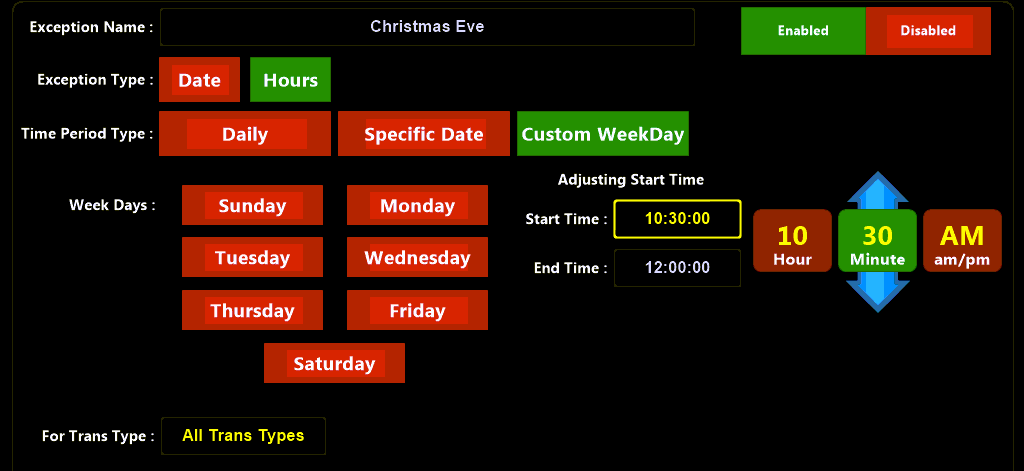
Add Exception (Hours) allows you to set specific hours as closed for a variety of scenarios:
|
Hours |
If set to 'Hours' you will be given the option to choose additional settings |
|
Daily |
This option repeats each day. Use this option if the store will be closed for a sequential period of days for a specific parts of days |
|
Specific Date |
Allows you to choose a calendar date to set as closed |
|
Custom Weekday |
This option unlocks the 'Week Days' settings and allows you to choose specific days of the week to set as closed |
|
Start Time |
Set the Hour and minute that the store will be Closed |
|
End Time |
Set the Hour and minute that the store will be set back to Open |
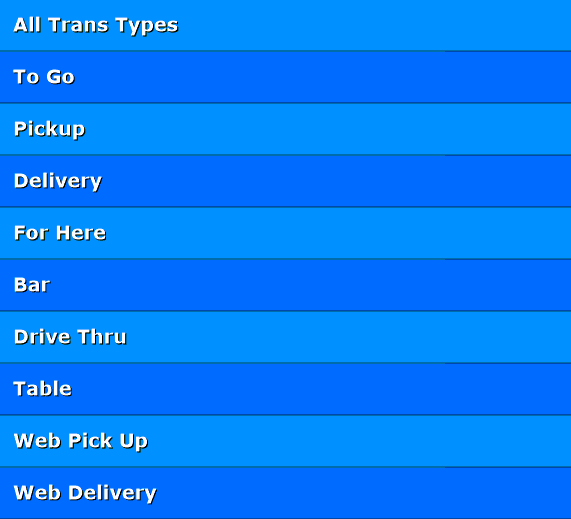
The 'Trans Type' field brings up a selection window which allows you to chose either individual Transaction Types or 'All Transaction Types' to set as unavailable for the specified time period:
Exceptions can be either Enabled or Disabled using the  buttons. When set to Disabled the exception will be ignored by the POS and will not affect store operations.
Additionally you can filter the main screen to view either Enabled or Disabled exceptions using the  .
.