Order Taking
Customers can place orders and make payments on the terminal itself using a touchscreen interface:

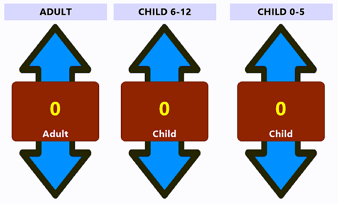
Users can optionally be given the opportunity to select how many and the makeup of their party when placing their order:
Then they simply select the screen to begin an order and then choose the item they wish to order:

For example, the customer chooses the 'Pizza' button which takes them automatically to another screen where they can choose what type of pizza they want to order:

If there are any customization options for the ordered item the customer is prompted to make their selections:

As an example: the 'Pizza Toppings' menu is broken out in to 3 sections: Meats, Veggies and More. From these screens the customer can customize their order in any way they want by adding or removing toppings to the whole pizza or by individual halves. As selections are made the order pad and order totals are updated to reflect their selections.
The customer can change screens using the  button or the
  button.

Once all selections have been made for the item the customer can change how many of the item they are ordering or cancel the item completely if they wish:

Once the item has been completed they can add additional items or choose the Pay button:

The Payment Screen let's the customer choose Gift Card, Credit Card or Cash payments. If paying by Cash the customer may be directed to go to the nearest cash register to proffer payment to a cashier:


If paying by either Gift Card or Credit Card the customer will be prompted how to make their payment:
