Wait List
A wait list is a tracking system for walk-in customers who desire a table but find your establishment currently full. It ensures that customers are seated as tables get freed up, based on each party’s size and their arrival order.
When first accessed the wait list screen will show all parties that have been entered that are awaiting seating:

 - Use the Add New button along the top of the screen to enter a new party to the wait list.

Enter the contact information for the party along with any notes or special requests.The Mobile Phone field is used for SMS messaging if your store subscribes to the service.
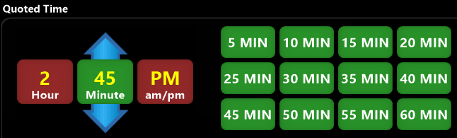
The Quoted Time section is used for the estimated wait time for the party until a table becomes available. You can either enter a time using the arrow keys or by selecting one of the green speed keys. This time is used for reference only in the system and is useful to help track estimated versus actual wait times:
The left hand side of the screen shows Guests that are currently waiting to be seated. You can use the tabs at the bottom of the screen to filter this list.

Each Party is listed separately on the waiting list showing their name, the time they were quoted, along with the wait time and number of guests in the party.

The right hand side of the screen will show the party specific information that was entered when they were added to the wait list. Here you can see their contact information along with any notes and table preferences:

If you need to edit the party information or delete them from the wait list you can do so by using the buttons located along the bottom of the screen.
Use the  button to notify them that their table is ready. If you subscribe to SMS through PDQ, this will allow the host / hostess to send a notification SMS to the patron using the cell phone that was entered for the party. If you do not subscribe to SMS through the POS, it will prompt the employee to inform the customer that their table is ready. Contact PDQ support to discuss adding SMS to your system.
Once a party has been notified and is ready to be seated use the  button to mark them as seated in the system and remove them from the active wait list.