Coupon Manager
The Coupon Manager is where you set up and manage all of your coupons and menu discounts.
These include:
- $ value off
- percentages off orders or items
- Buy One Get One Free
- Open Discounts
- Buy X at Y price
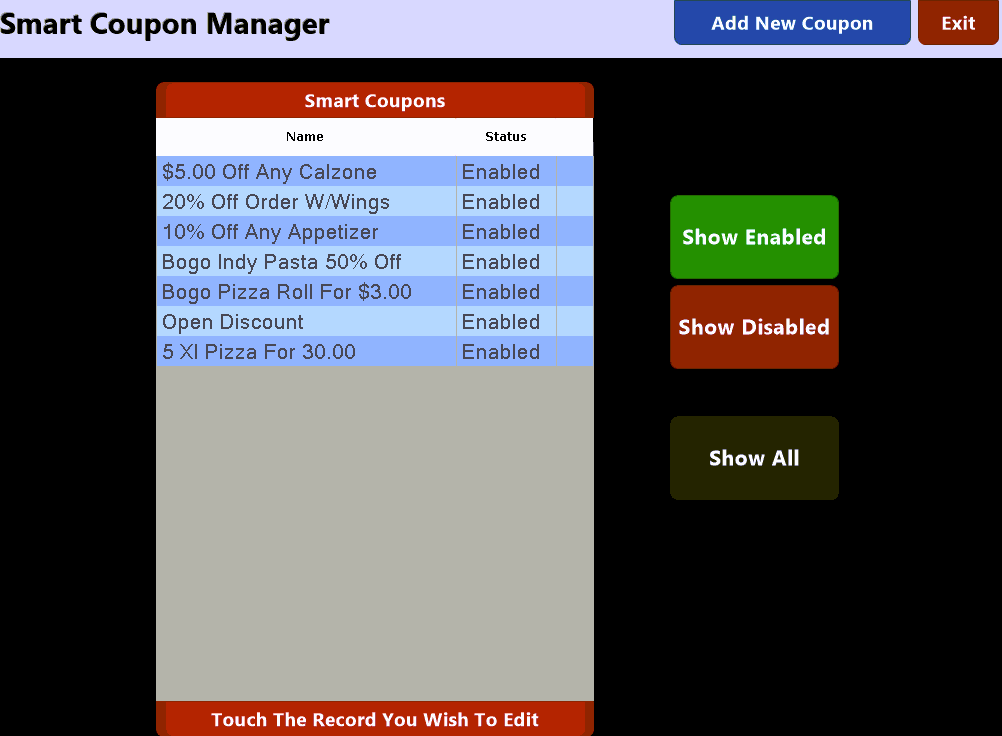
Use the  button along the top of the screen to add a new coupon or discount.
 NOTE: Since coupons and discounts are never deleted you may wish to edit an existing coupon that is not in use instead of adding a new one.
You can also filter the list of coupons using the filter buttons located to the right of the main window
Selecting either the button or editing an existing coupon will bring up the Coupon Setup screen which is broken up into three (3) sections:
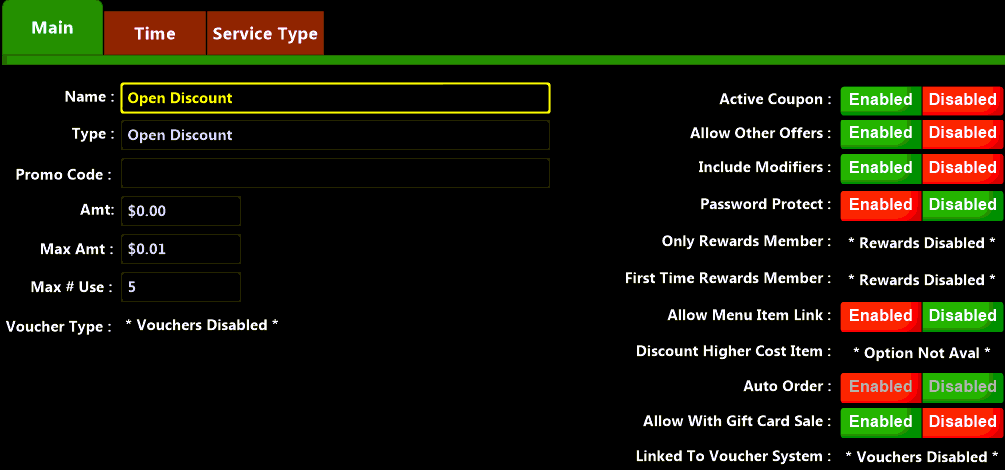
Section One - MAIN:
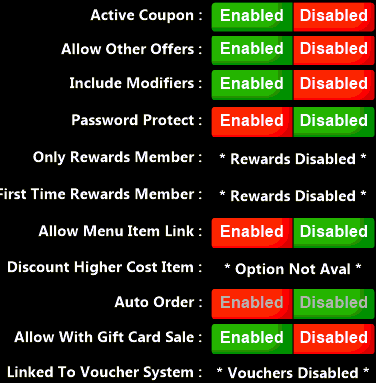
The main section of the Add\Edit screen is where you configure the majority of settings.

|
Active Coupon |
set if coupon is enabled and can be used or not |
|
Allow Other Offers |
when enabled can be used with other coupons |
|
Include Modifiers |
enable to also discount modifiers along with the parent item |
|
Password Protect |
when enabled user must enter their password to use the coupon |
|
Only Rewards Member |
when enabled only a 'Rewards Member' can use the coupon |
|
First Time Rewards member |
when enabled only a 'Rewards Member' making their first purchase can use the coupon |
|
Allow Menu Item Link |
when enabled the coupon can be applied directly from a menu item instead of the 'coupon' screen only |
|
Discount Higher Cost Item |
determines how a discount is applied. When enabled a 'buy one get one' discount will apply to the higher priced of the two items. when disabled the discount will apply to the lesser value. |
|
Auto Order |
if enabled the coupon will apply itself when the conditions are met. EX: buy 2 subs and receive the coupon |
|
Allow With Gift Card Sale |
if this option is enabled it will allow discounts on sales with gift card issues. NOTE: it is recommended to NOT allow discounts on gift card issue as it can result in fraud or lost revenue. |
|
Linked to Voucher System |
if vouchers are enabled this setting determines if the coupon can be applied when using a voucher as a payment method or not |
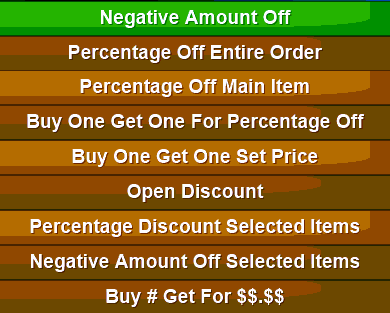
Discount type:
|
Negative Amount Off |
Set a value amount to subtract from an order |
|
Percentage Off Entire Order |
allows you to discount an order by a set percentage amount |
|
Percentage Off Main Item |
take a percentage off a single item in an order, not the entire order total |
|
Buy One Get One For Percentage Off |
purchase an item at regular price and receive a percentage discount off of a second item |
|
Buy One Get One Set Price |
purchase an item at regular price and a second item at a set price |
|
Open Discount |
set an open $ value amount to discount |
|
Percentage Discount Selected Items |
give a percentage amount off of the selected items |
|
Negative Amount Off Selected Items |
discount selected items by a preset value |
|
Buy # Get for $$.$$ |
set a number to purchase for a set amount. EX: buy 3 for $5.00 |
Section Two - Time:
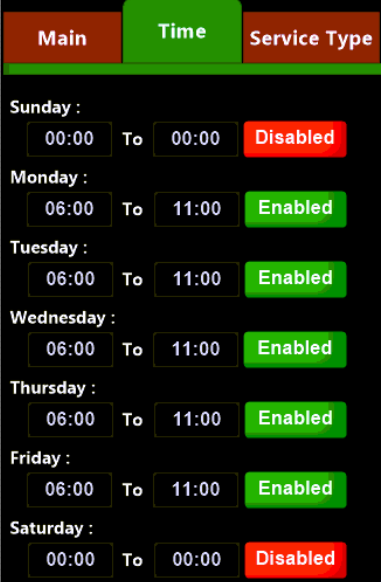
Use the Time section to set day of the week and time of day that the discount is active.
For example: you may have a breakfast coupon that runs from 08:00 A.M. to 11:00 A.M. on Weekdays only. With these settings the coupon will only be able to be used during the active time and days of the week. Outside of the enabled times the coupon will not show in the available list when taking an order.
Section Three - Service Type:
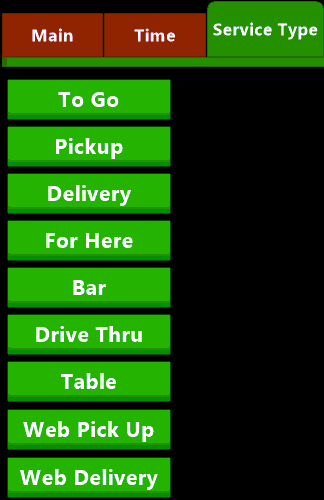
The Service Type section is used to set the order Transaction Types that the coupon or discount can be used on. You may wish to only allow use of the discount for To Go orders or Delivery.
Select the Transaction Type type to toggle active (green) or inactive (red).
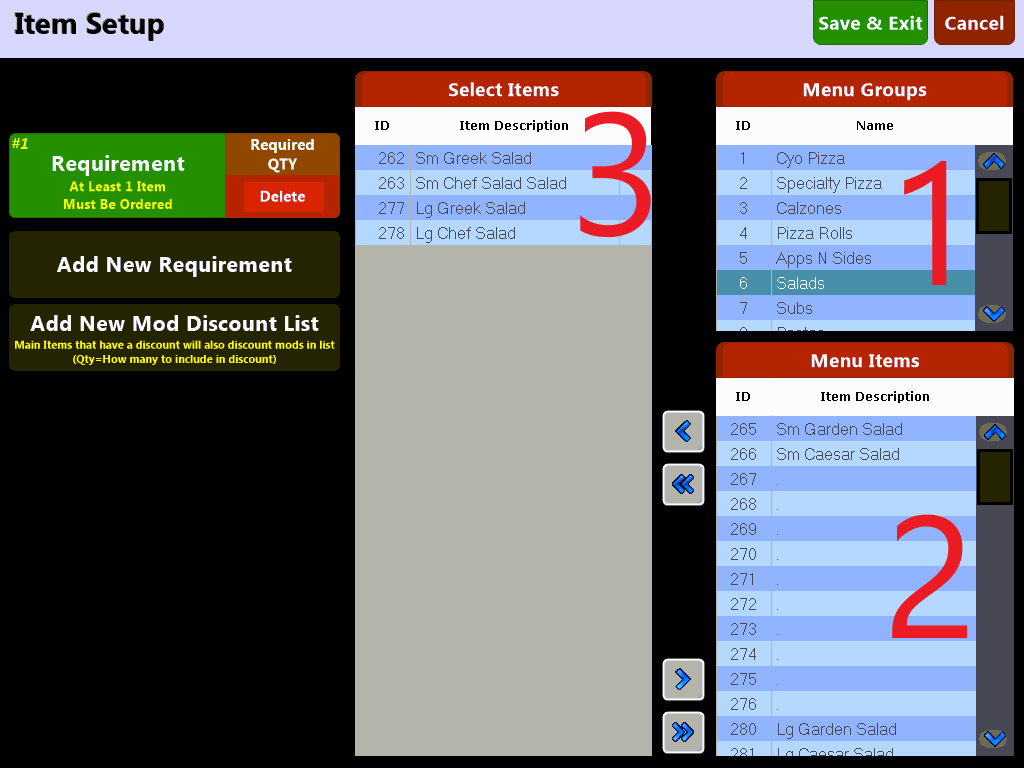
The  button is used to set the items that need to be ordered for each coupon to be used. You can set specific items as well as the number of items that must be sold to receive the discount.
You are able to set up  which are menu items and
  which are lists of modifiers that can also receive the coupon discount.
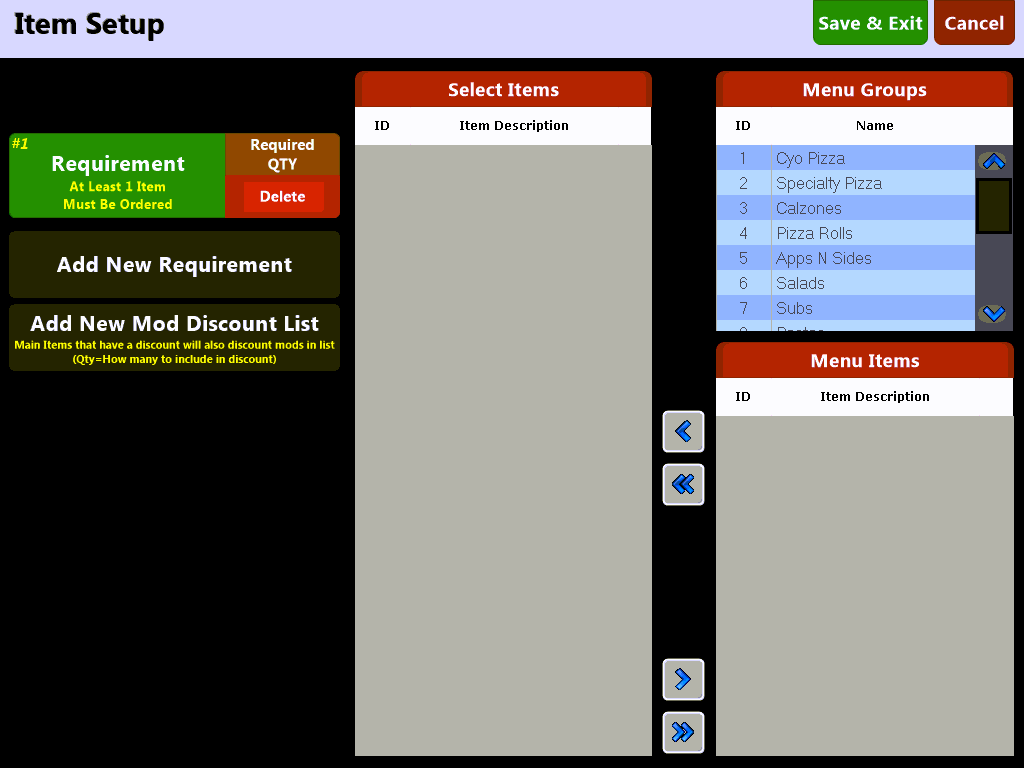
The field let's you see how many items are needed to be ordered in order to use the coupon. Press the  and enter the desired quantity to set. For example, on a 'Buy One Get One' coupon you would want to set the quantity to 2, or set to 5 for a 'five for $5.00' coupon.
The  field allows you to set any modifiers that may be eligible to also receive the coupon discount as well as the main item. In order to receive the discount these modifiers must be modifying an item included in the coupon. In this way the system ensures that only items and modifiers that are authorized can receive the coupon. Press the and enter the desired quantity to set.
After choosing a menu item requirement or a mod list you need to populate the discount with items. To populate the discount:
1) Select the Menu Group from the screen
2) Select the items from the 'Menu Items' field
3) Use the blue arrows to move the items from the 'Menu Item' Field to the 'Selected Items' field