Message Board
The Message Board edit screen is where you go to set all of the messages that will display either as staff facing or customer facing messages.
Once you have set your options you must hit the  button along the top of the screen to save your changes. Failure to hit the Save button will revert all changes made during the current session.
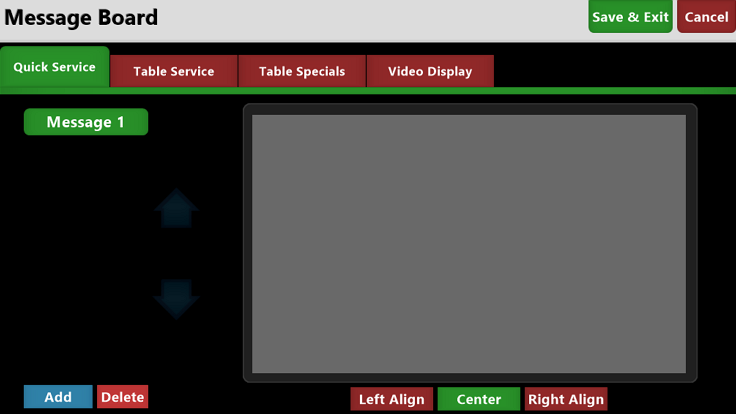
The screen shows your message types along the top of the main window:

|
Quick Service: used to configure staff facing messages seen on quick service menu types |
Table Specials: configure the list of "daily" specials shown to wait staff |
|
Table Service: set the staff facing message used on table service menus |
Video Display: configure messages to be shown on a customer facing video display |
Use the  button to add a new message and the
  button to remove a message.
Once you have entered the text you wish to display use the  buttons to align the text as you would like for display on the terminal.