Drive Thru
Drive Thru mode allows orders to be taken and processed quickly and efficiently.
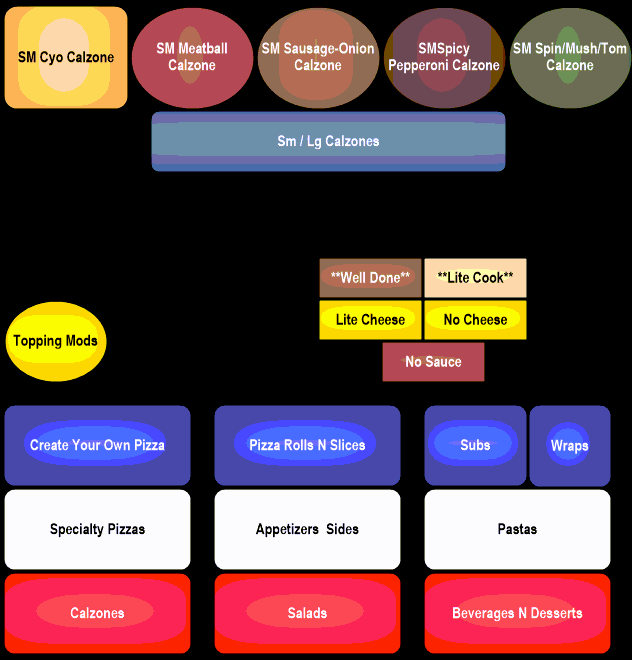
A Drive Thru generally consists of 2 or more terminals, an Order Taker and a Cashier terminal but can operate with as few as one terminal.
When planning out a Drive Thru system keep in mind that an Order Taker terminal and a Cashier terminal will share a register number.
For example: if you have 3 terminals on the counter and want to add 1 Order Taker and 1 Cashier terminal you would set both Drive Thru terminals to register number 4.
When you have multiple Drive Thru stations: Orders are taken on the Order Taker terminal and sent to the Cashier terminal. When an order is sent from the Order Taker it is automatically transferred to the Cashier terminal and placed in the queue for tendering.
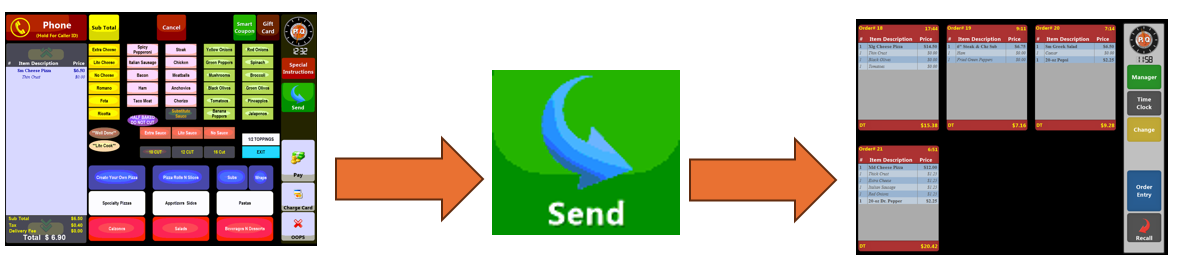
When orders are sent to the Cashier terminal they will display in the order they were sent. Simply select the card representing the order you wish to access.
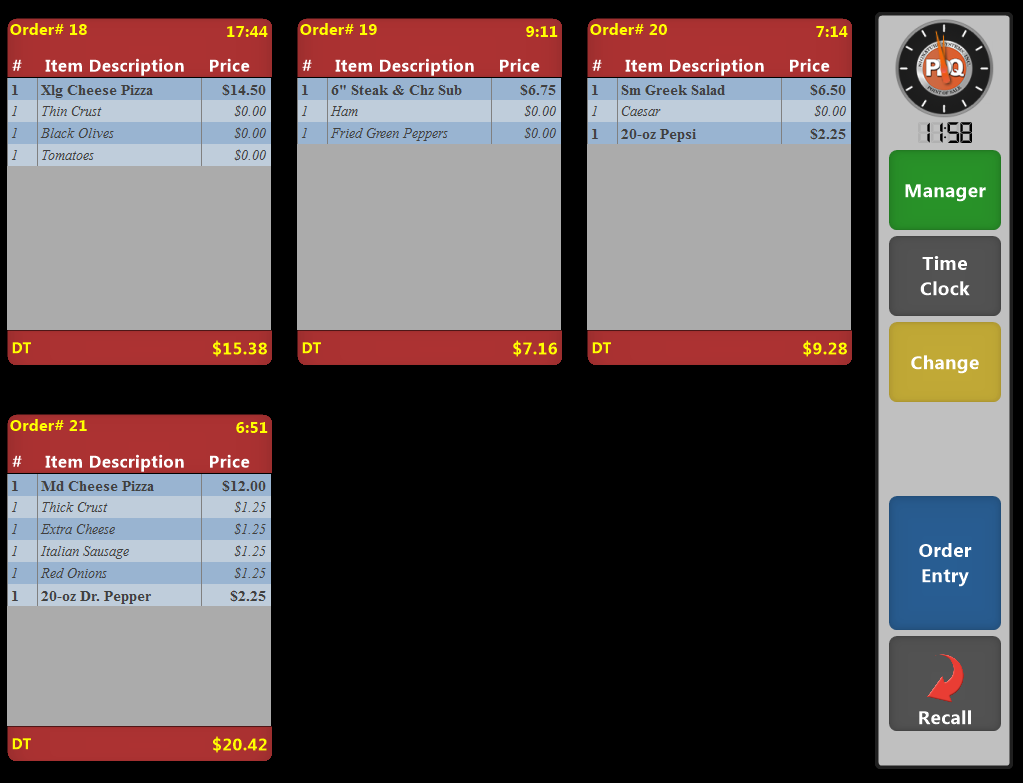
You can use the function buttons located along the right side of the Cashier terminal screen to access Manager Functions, Time Clock or open the cash drawer to make change for a customer.
 Use the Order Entry button to start a new order and the Recall button to search for any order that is not displayed on the screen.
Selecting an order will open the Pay Screen:

 If a customer arrives in the Drive Thru and has a previously placed Pickup order you can access it via the Recall button and use the button to send the order to the Cashier terminal screen where it can be accessed like a normal Drive Thru order.
The Send to DT Q option is only available from a Drive Thru register.
