Tender an Order
By selecting the  option you will gain access to the payment screen where you can select a number of payment options. Orders are not sent to the VDUs and printers until paid when accessing this screen:
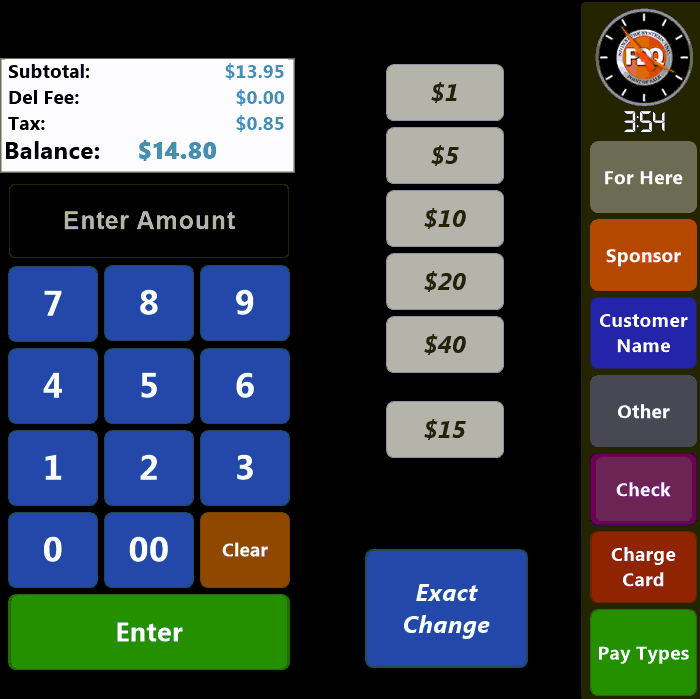
The order total is displayed above the number pad. A payment value can be manually entered via the numeric buttons or by using one of the 'speed keys' located in the center of the screen. These speed keys will tender the amount reflected. The bottom speed key is dynamic and will reflect the order total rounded up to the next dollar amount.
Additionally, you can use the  button to tender the order with the exact amount owed.
As of POS Version: 3.5.423 PDQPOS includes rounding to the nearest nickel.
for more information see the section 'Nickel Rounding'
Along the right-hand side of the screen are a series of options that can be applied to the order:
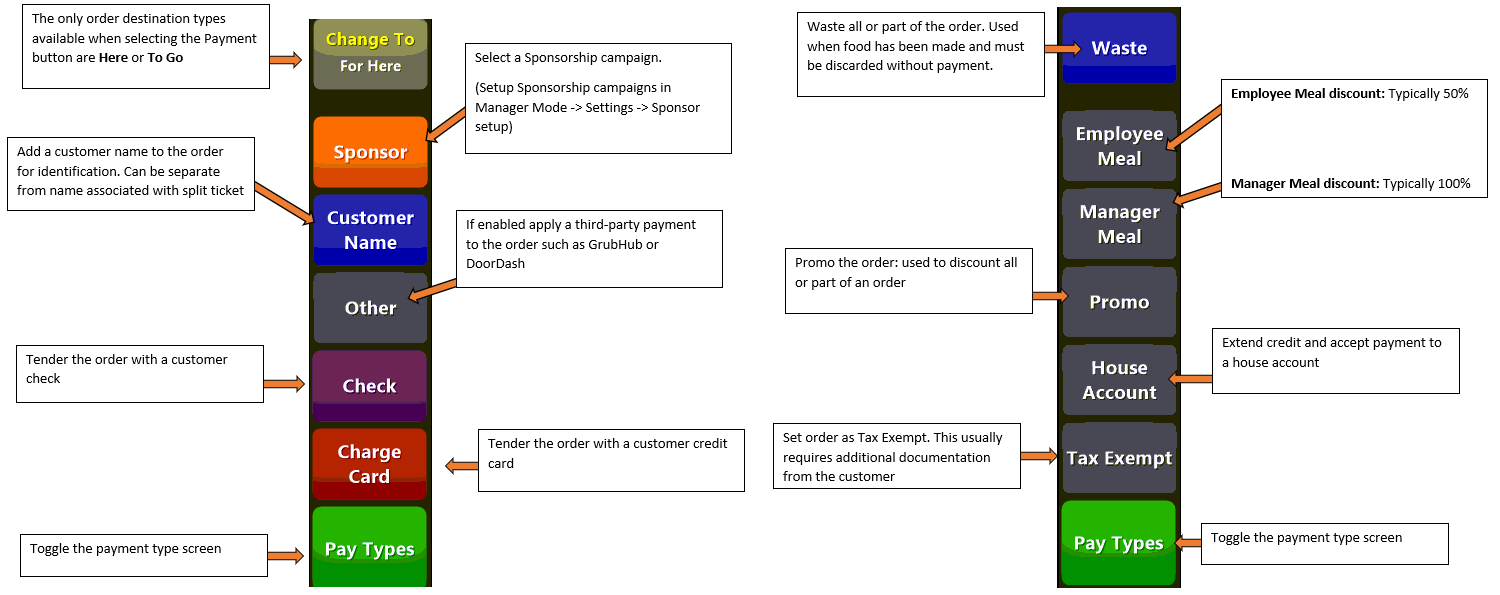
The  button opens the interface that allows you to accept a Credit Card as payment:
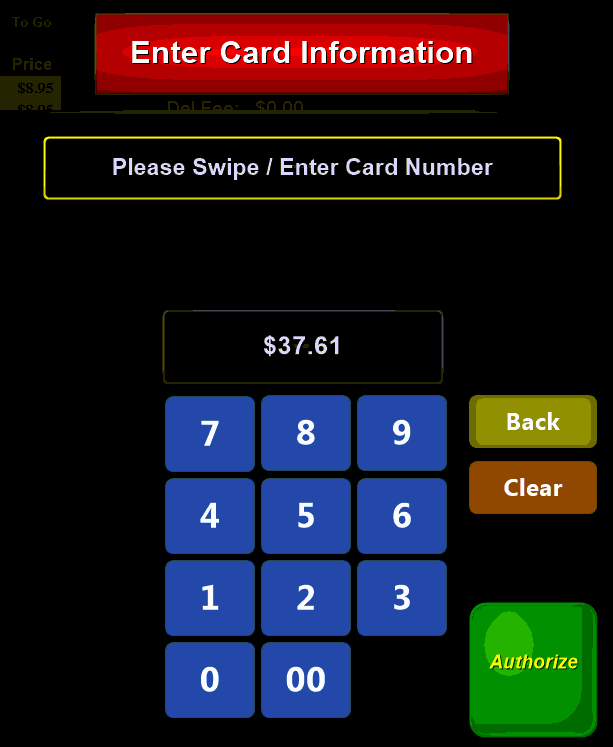
Credit Card payments are taken on an external credit terminal. Enter the amount of the payment and select the green Authorize button to send the information to the external terminal. Complete the payment on the external terminal.
Use the  button to access the waste screen. This will allow you to waste the entire order. Used when food has been prepared but cannot be sold.
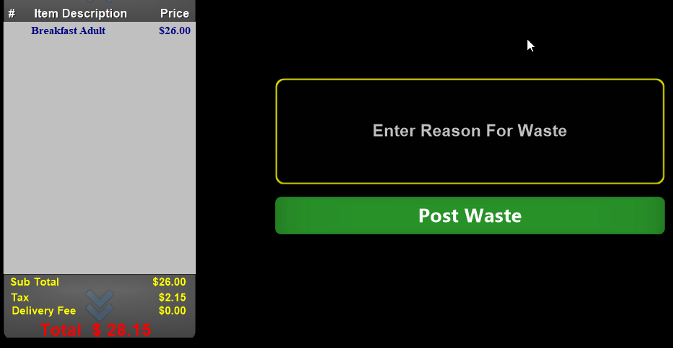
Enter the reason for the waste and select the green 'Post Waste' button.
The  button will open a sub-screen allowing you to enter either a pre-determined percentage discount for the order or choose an open dollar or percentage amount:

Once you have entered the discount amount press the green enter button to be taken to another screen to enter the promo reason:

Where you must select one of the pre-set reasons for the discount. These reasons are configured under the Adjust Reasons screen.
Selecting the  button brings up a prompt to enter the customer's phone number. This number will be used to look up the customer's account and if they have an active house account you will be able to apply the order to it. House accounts function as a sort of extended tab and are usually extended to larger customer's such as a local church or school. House accounts are explained in-depth under the Manager Daily tab.
Occasionally you will receive orders from non-profit or governmental organizations that enjoy a tax-exempt status. When you receive such an order you will need to ensure that they are not charged tax by selecting the  button. Usually, confirmation of their tax-exempt status is required by keeping a copy of their Tax ID number on file. Pressing the button again will reapply tax to the order. If your store requires Tax ID but there is no prompt, contact our support staff to have this enabled.
Orders with Split Tickets show an additional payment option when accessing the button:
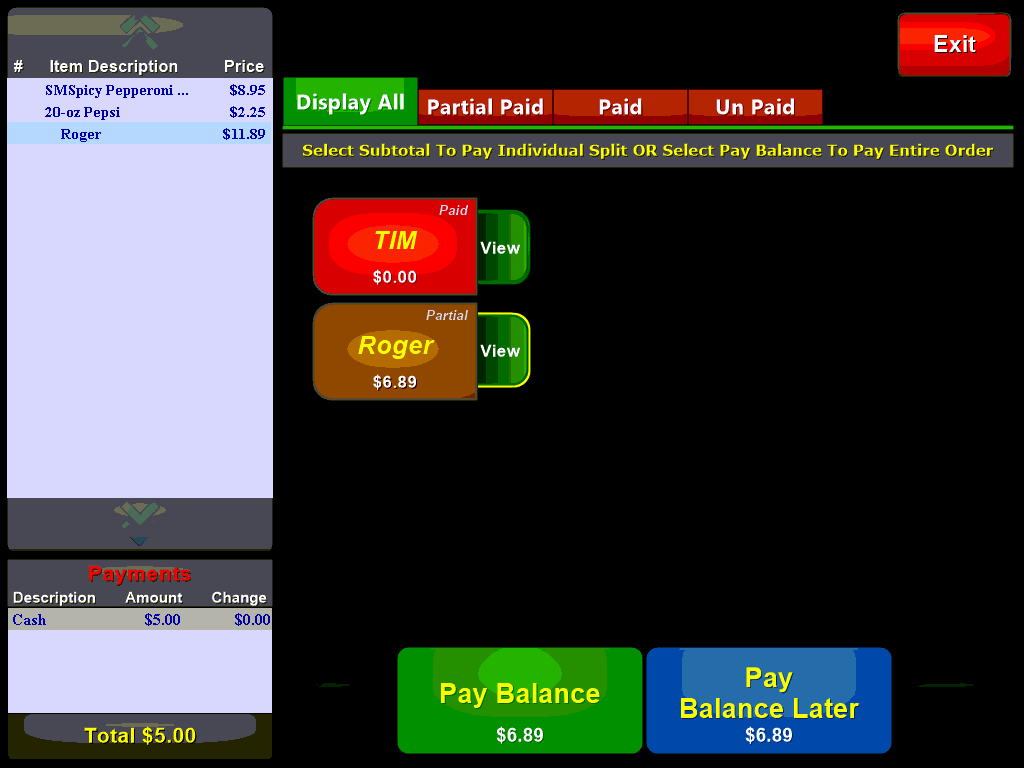
You will be prompted to select the individual sub-order for either full or partial payment. This screen can be filtered to show all splits, partially paid or fully paid splits or only unpaid splits.
You can choose to  which will open the regular payment screen and send the order to the VDUs and printers or
  .
.
Choosing to Pay Balance Later will send the order to the VDUs and printers.