Order Taking
Taking an order in Quick Service Mode is as simple as selecting the menu item you wish to order:
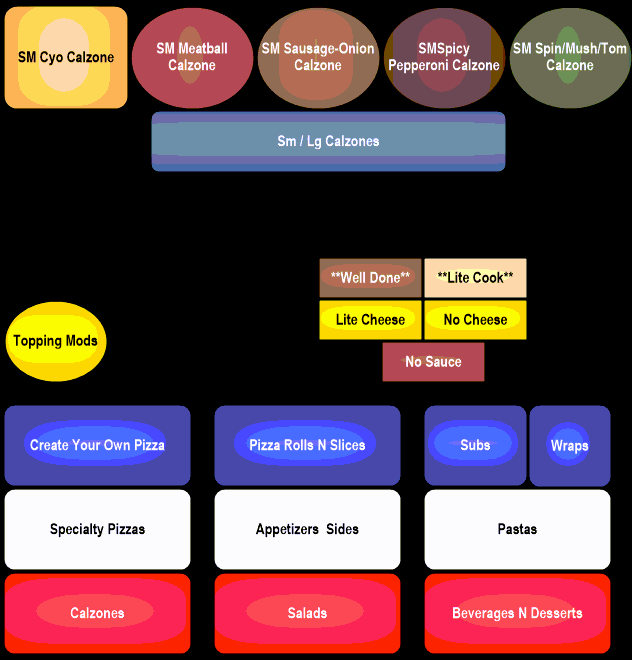
Select the Flash Button at the bottom of the screen. This will open the linked menu items and allow you to select them for ordering.
You may be prompted to modify the item once selected:

Some screens may have a required number of selections per item, you must meet the selection requirements to advance to the next screen:

When placing an order if you ever need to change the quantity of items ordered simply select the item in the order pad to bring up the Select Edit Mode screen which will allow you to edit your items:
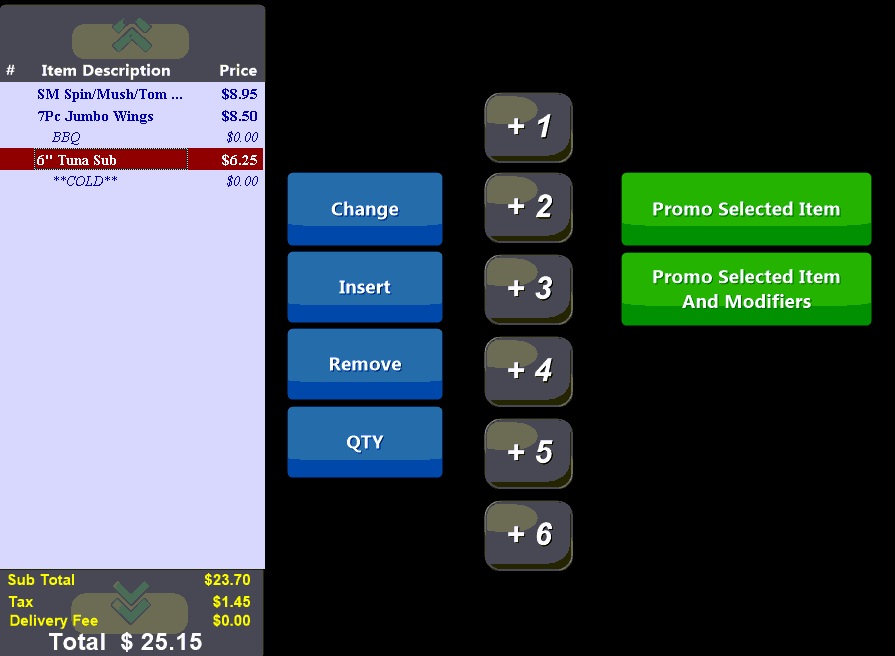
Change: replace the item with another menu item
Insert: add a new menu item
Remove: delete the menu item
QTY: set the quantity of the menu item
Using the 'speed' buttons allow you to quickly add the set number of items. Select the item from the order pad and press the corresponding amount key.
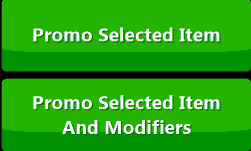
Use the Promo buttons to promo individual items and\or their modifiers:
If there are any special instructions (for which there is no menu button) select the  button. You will be prompted to enter a description of the special instruction and any associated charge. For instance, you may have a request to cut a pizza into squares for which you charge an additional .25 cents. To discount an item through a special instruction enter a negative amount.
You may be prompted to enter your Login Credentials in order to enter a Special Instruction.
As items are ordered they will be placed in the Order Pad window located along the left side of the screen:

This window allows you to see the items that have been ordered as well as totals for the order.
If you make a mistake and need to back out of an item once selected you can press the  button in the lower right hand corner of the screen. The Oops button will erase the last item that was ordered from the order pad. It is possible to select this button and back completely out of an but doing so will keep the order open and affect speed of service times.
Instead, if you need to cancel an order completely prior to accepting payment and sending it to the VDUs and printers simply select the  button and confirm you wish to cancel.
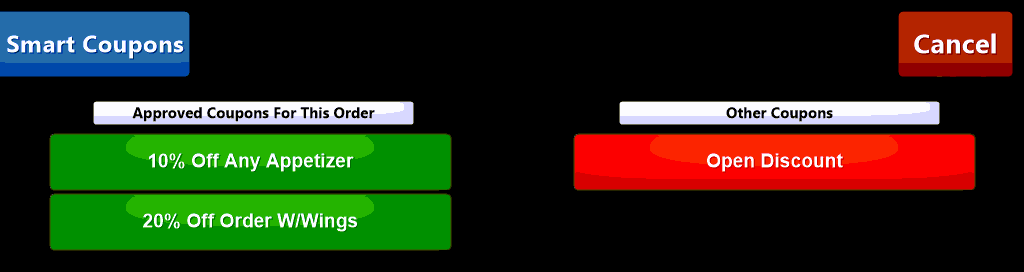
The  button allows you to apply any coupons to the order:
 Orders can be split between individual sub-totals. This allows you to ring up one large order with individual totals that can be paid separately. To split a ticket choose the Sub Total button and enter the name or descriptor in to identify the entity responsible for that amount. This name will appear on the order pad as well as all receipt slips printed for this order.
Once all items have been ordered you can either select the option to have the customer pay immediately or send the order to the kitchen for preparation using the  button.
If an order is Sent you will need to accept payment later. Sending the order will bring up the 'Send' screen with the associated order Transaction Type:
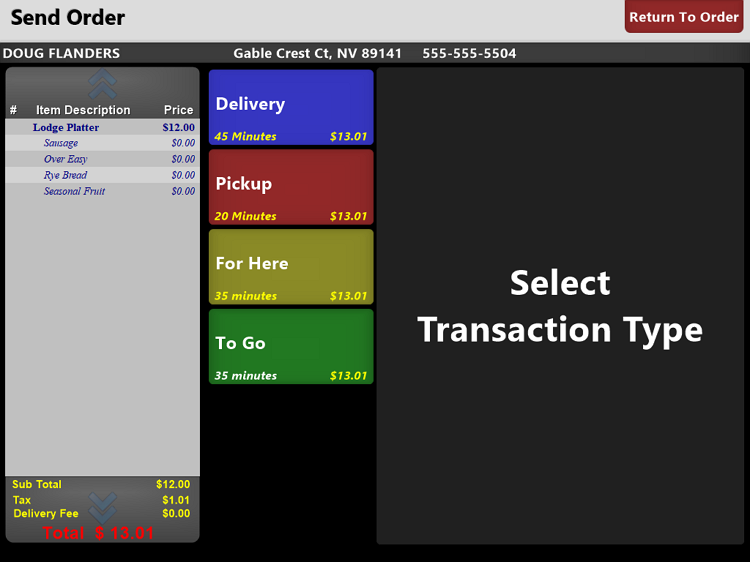
Depending on your configuration these order Transaction Types may vary at your location. If you wish to go back and edit the order further select the  button.
Once you have chosen a Transaction Type you will be prompted with additional choices:

- Delay Order: delays the order (doesn't send to videos or printers) until a predetermined time:

You will be prompted to choose a delay date and time. Use the Quick Delay buttons along the bottom of the screen to choose a preset duration or manually set the date and time using the Date and Time buttons. Orders can be delayed for later in the day or for any date in the future.
- Charge Card: tender a charge card on the order. See Payment Types
- Sponsorship: choose a Sponsorship Campaign
- Discounts: apply any discounts:

- Tax Exempt: set order as tax exempt. Pressing the button again will reapply tax to the order.
- House Account: put order on account
- Other: apply a third-party payment (GrubHub, DoorDash etc.)
- Prepay Cash: pre-apply a deposit to the order such as for a large catering or delivery order.
 - When ready press the Send Order button to send the order to the printers and videos for preparation.