House Accounts
House accounts are a great way to offer credit to your best customers but in the end are less than ideal if you don't get paid. That is where the House Accounts function comes in.
The House Account Manager shows all house accounts stored in the Point-of-Sale and allows you to view and sort the data in a variety of ways.
By default, when first opened you are presented with the accounts listed by individual order number. You can change this by using the  button to show aggregated account data instead.
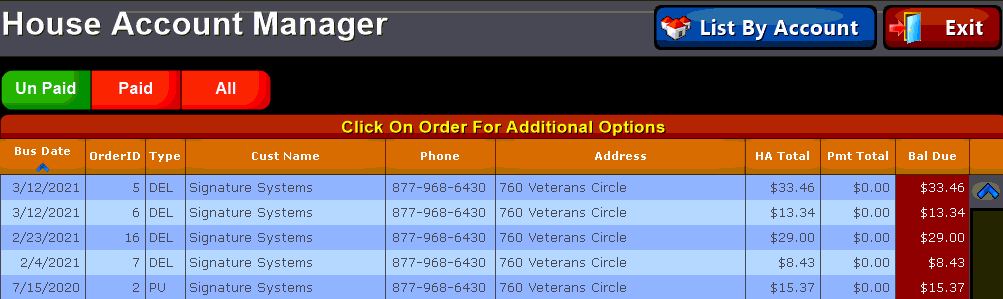
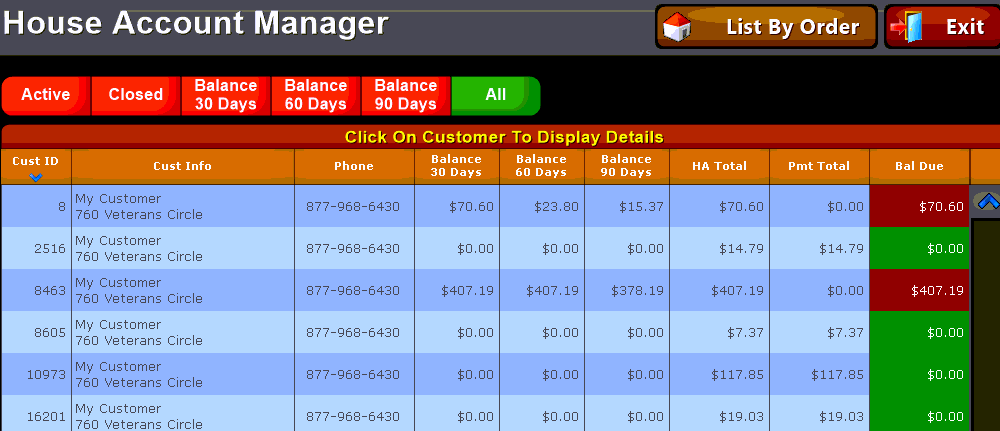
Figure 41 : Filtered by Account
|
Bus Date |
Shows you the business date that the order was placed on. this may be different from the actual calendar date depending on when the store performs its Z-Report) |
|
Order ID |
shows the Order ID of the associated order, this number may be re-used across the range of the report |
|
Type |
Displays the order Transaction Type (deliver, pickup, in house etc.) |
|
Cust Name |
let's you see the name of the customer associated with the house account |
|
Phone |
Shows you the customer's phone number |
|
Address |
Displays the address of the customer |
|
Balance 30/60/90 Days |
Shows the extended balanced over 30/60/90 day time frame to assist in identifying delinquent accounts |
|
HA Total |
Shows the balance due on the house account. Note: This field is dependent on how the report is filtered
|
|
Pmt Total |
Shows you any amount that was paid against the account. Note: This field is dependent on how the report is filtered
|
|
Bal Due |
Displays any amount due on the account. Note: This field is dependent on how the report is filtered
|
Depending on how the report is filtered you can use the buttons located at the top of the list view to drill down into the data:
Use the  while in the 'List by Order' view to show orders by paid status.
You can also view additional account data when you have filtered by account: Use the  buttons to show orders that are Active or Closed, as well as by the length of time that the balance has been owed.

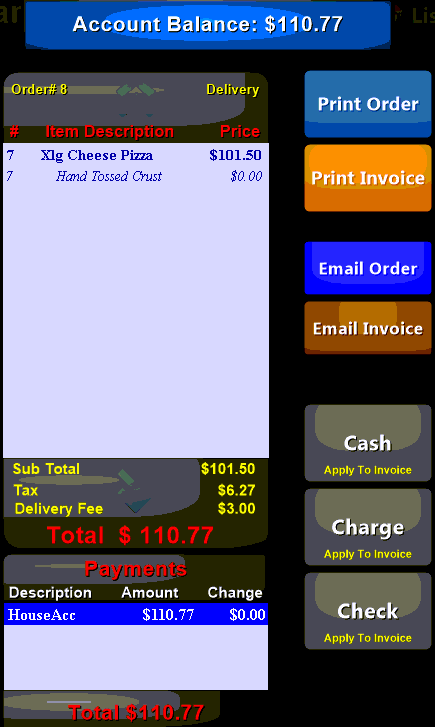
Selecting an order will open additional dialog options that allow you to:
 Print a copy of the selected order or
  print an Invoice to send to the customer
 Show detailed order information allowing you to print or email a receipt or invoice.
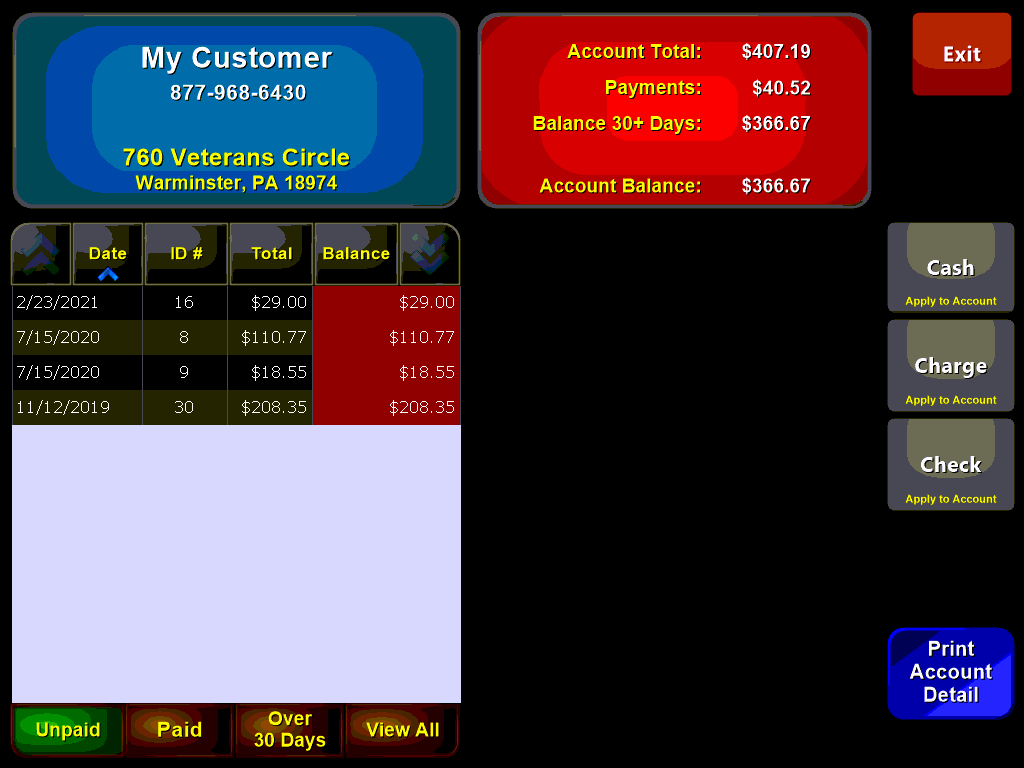
You can also apply payment to the account. When applying a payment to an account, rather than specifying a particular order, it will apply the payment to the oldest order and any balance remaining will apply to the next oldest until all outstanding orders are paid.
 Display customer information such as order and payment history as well as balance owed: