Recall
The  button located in the bottom right of the main quick service screen opens the recall order screen allowing you to bring up orders for the current day for editing or to reprint receipts:
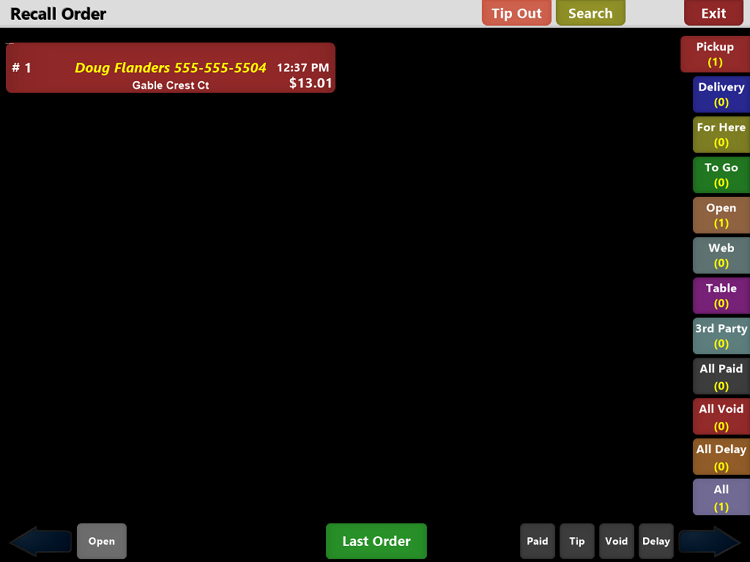
Use the filter buttons along the bottom of the screen to filter for the different Transaction Type. There are additional filter options that vary for each Transaction Type selected. These options will appear above the Transaction Type buttons. Click the additional filter types to further filter the displayed results:

You can also use the  button to close out your drivers checks and tip them out.
The  button allows you to bring up a search dialog screen that allows you to filter your search by Order, Phone, Online ID or jump to a specific order number in the displayed list of current days orders:
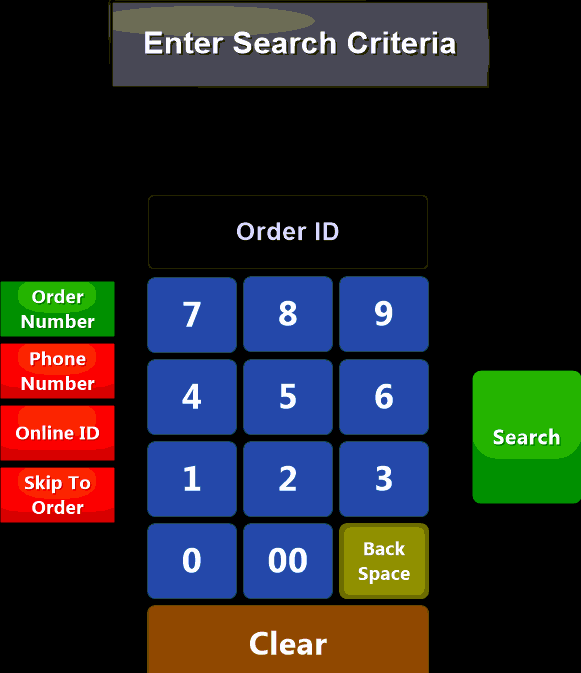
Selecting the  button brings up global filter options and allow you to search for text using the onscreen keyboard:


Selecting an order from the list will bring up additional options:
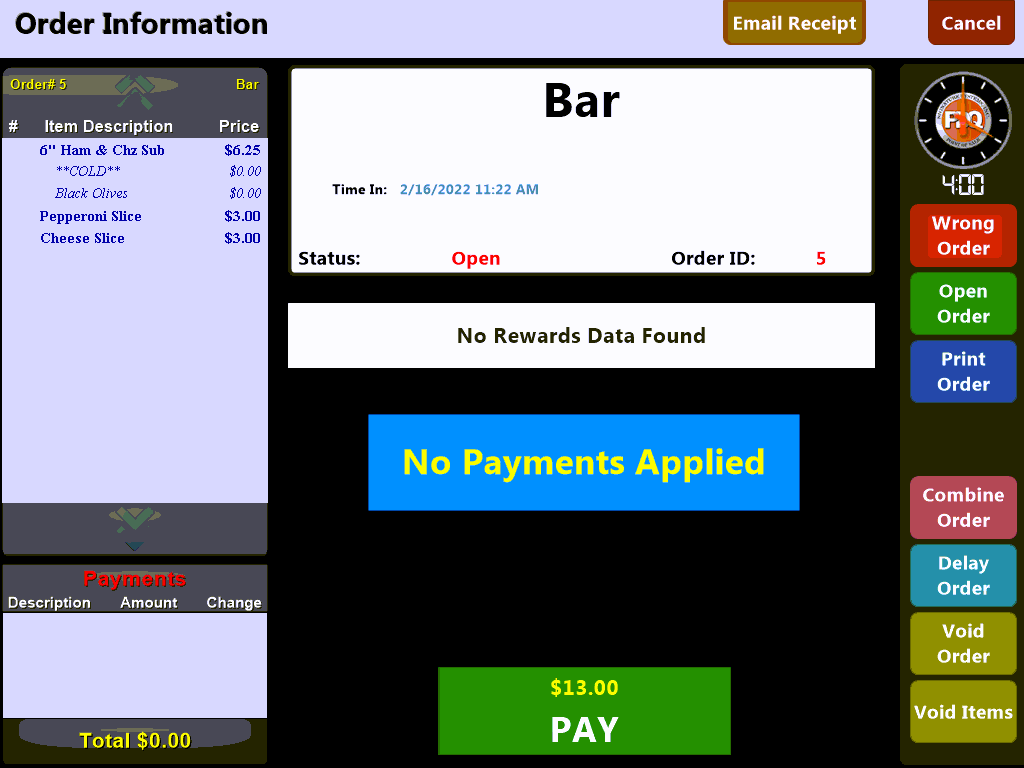
The center of the screen shows the Transaction Type for the order as well as the order address, open and close times and who placed the order as well as the assigned delivery driver:
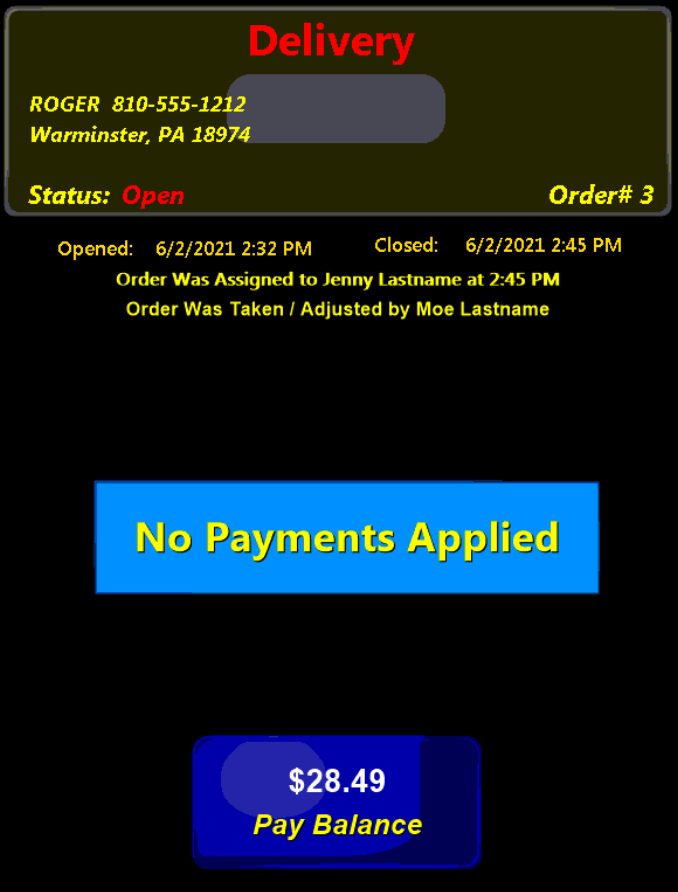
Any payments as well as remaining balance is also listed on screen.
The buttons located along the right-hand side of the screen allow you to perform additional housekeeping activities on the selected order:
 - close edit screen and exit to main order screen
 - reopen check if closed
 - close this check and return to recall screen
 - email receipt to customer
 - print out a copy of the ordered items
 - combine this check with other check(s)
 - delay the order to a future date or time
 - void out the entire order
 - void out individual items on the order