Dispatch
Located on the bottom right of the main screen the  button allows you to not only dispatch delivery orders but also track where your drivers are and how many drivers you have available at any given time.

The main portion of the screen is divided into 3 sections: Oders ready to dispatch, Drivers on delivery and drivers available for delivery. Orders marked as Delayed will be highlighted in yellow and Critically Late orders will be highlighted in RED with the total the total number of minutes elapsed since the order was placed shown for each order. You can change the times for Late and Critically Late orders under Manager\Daily\Service Times
Along the bottom of the screen you can bring up a map that will show you all of your available (un-dispatched) orders. Use this map to group deliveries by driver to avoid unnecessary runs or drivers backtracking between deliveries.

You can use this map to show all un-dispatched orders or select your orders first and then click the Display Map button to only map out the selected orders.
The  button will allow you to bring up a map showing where the driver currently is in relation to their deliveries. This feature is dependent on the
  option being chosen during clock in as well as having the optional Driver Tracking feature enabled.
Using the  button will allow you to search for an assigned order by order number and unassigned it from a driver so it can be re-assigned, delayed or voided.
Employees can also clock in directly from this screen using the Time Clock button.
Assign an Order:
To assign an order to a driver simply:
- Select the orders you wish to assign from the un-assigned order list
- Select the available driver
This will move the orders and driver to the 'Driver Out' column and reset the timer. The timer in the Driver Out column represents how long the order has been in dispatch.
Drivers will be reminded about any included items that have been setup to take for the delivery:

Clicking on a "Out Tab" brings up information about your current group of deliveries:

This screen shows all of your currently out deliveries as well as the service you used: in-house or a third party delivery service.
You can see the customer's address, the time the order came in, what time it went out and what time it was dropped off. Drop off times are contingent on using the Driver Trackin App.
The "Delivered Tab" will show you information about completed deliveries from the current day.
Selecting the  button in the lower left of the screen brings up a map with the driver's assigned deliveries:
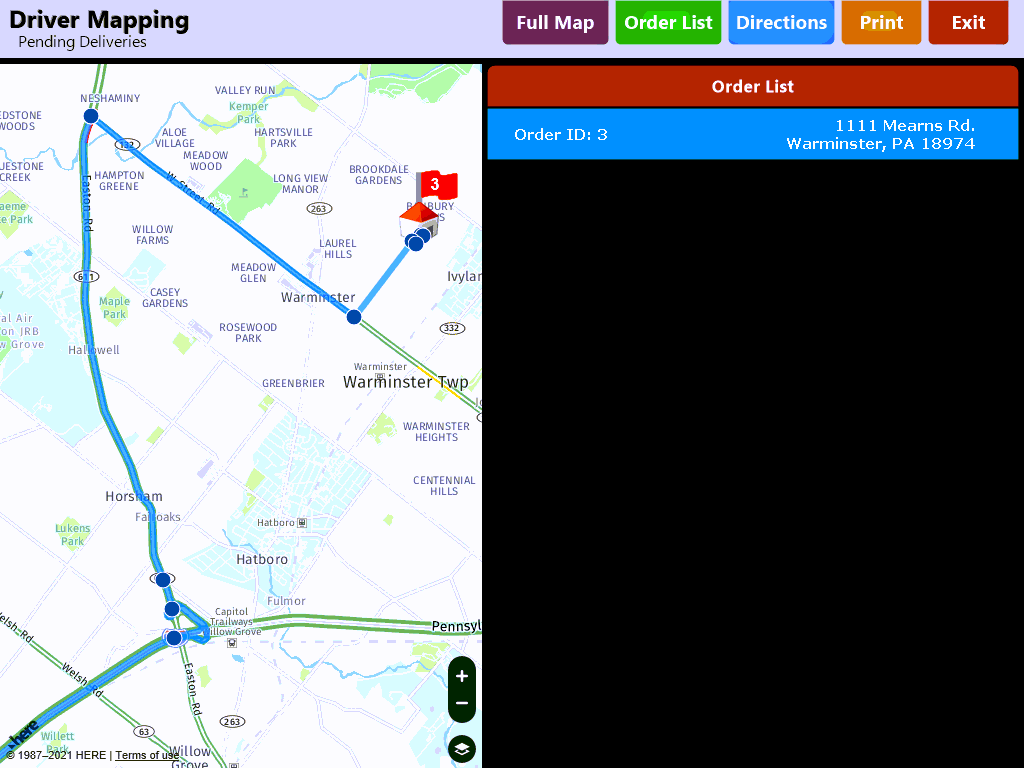
You can use this map to bring up a full overview of the assigned deliveries, a list of the orders with address information or turn by turn directions.
Use the Print button to print out directions if they are needed.
Press the 'Return From Delivery' to return the driver to the available column ready to be assigned or use the 'unassign all' button to remove all deliveries from the selected driver:

If an order was delivered before receiving a credit card payment you will need to recall the order using the  button and apply payment once the driver has completed their run. Otherwise, the system will assume the order was paid for in cash when you close out the driver.