Time Clock
The Time Clock report gives an accounting of work performed by each employee including date, time, and job of each clock in and out, total hours of regular and overtime worked at each job, and gross pay earned.
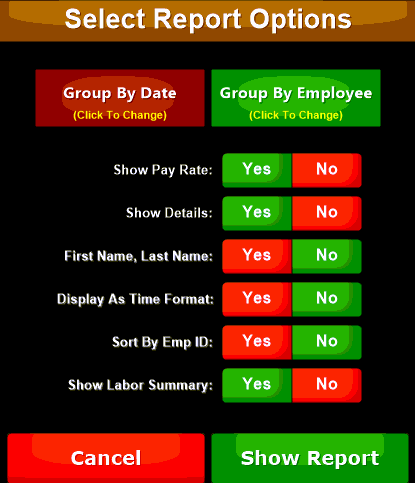
Optional Settings:
|
Group By: |
Shows the report either grouped by date with all employees with punches under that date or grouped by employee with all punches listed under the associated employees NOTE: if 'Group by Date' is selected the report will also show an addition 'Shift Total' line in the 'Time Punch Detail' section |
|
Show Pay Rate |
When set to YES the employees pay rate(s) will show on the report. When set to NO this will hide the 'Pay Rate' as well as the 'Reg Time' and 'Overtime' fields |
|
Show Details |
When set to YES the report will show specific information such as business date, Emp. ID and job description worked for the associated employee shifts |
|
First Name, Last Name |
Determines if the report shows last name first or First name first on the report |
|
Display as Time Format |
When set to YES the report will show time fields in HH:MM, when set to NO the report will show time fields in HH:HH using a decimal time format |
|
Sort by Emp ID |
When set to YES the report will sort the entries by the employee ID field instead of by name |
|
Show Labor Summary |
Toggle to show or hide the 'Labor % Summary' section of the report |
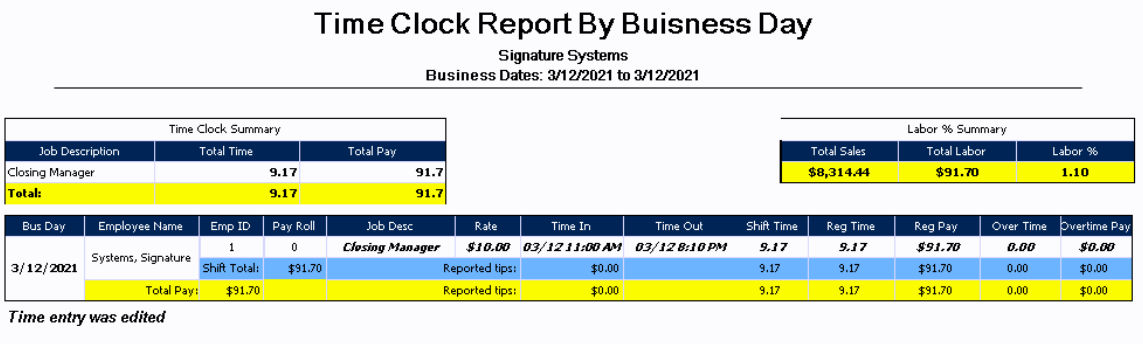
Time Clock Summary:
|
Job Description |
Shows the name of the associated Job Description |
|
Total Time |
Displays the total time of all shifts worked under the associated job description either in HH:MM or HH:HH |
|
Total Pay |
Shows the total amount paid for the shifts worked under the associated job description |
|
Total |
Displays a grand total of hours worked and amount paid for all shifts worked during the report range |
Labor % Summary:
|
Total Sales |
Shows the total amount sold (pre-tax) for the report range |
|
Total labor |
Displays the total value of all labor paid during the report range |
|
Labor % |
Shows the calculated labor percentage (total labor / total sales *100 and rounded) |
Time Punch Detail:
|
Emp Name |
Shows the name of the employee with punches |
|
Bus Date |
Displays the business date that the associated punches were entered on, this date can be different from the shift date of the punches NOTE: This field will be placed first ahead of the employee's name if the option 'Sort by Date' was selected when the report was generated |
|
Emp ID |
Shows the employee ID number of the employee with associated punches |
|
Pay Roll |
This is left blank for individual shifts and is populated for the report as a whole if 'Group by Date' is selected |
|
Job Desc |
Shows a description of the job that the employee was clocked in under |
|
Rate |
Displays the pay rate the employee received for the clocked in job |
|
Time In |
Shows the date and time of the In punch |
|
Time Out |
Shows the date and time of the Out punch |
|
Shift Time |
Displays the total shift time worked either in HH:MM or HH:HH |
|
Reg Time |
Shows the total regular (non-overtime) time worked for the shift being reported either in HH:MM or HH:HH |
|
Reg Pay |
Displays the total regular (non-overtime) pay earned by the employee |
|
Overtime |
Shows the total overtime time (in any) worked for the shift being reported either in HH:MM or HH:HH |
|
Overtime Pay |
Displays the total overtime pay (if any) earned by the employee |
|
Shift Total |
This line appears only if the 'Group by Date' option was chosen under the Options button. This line populates the payroll total for the reported shifts |
|
Total Pay |
Displays total earned pay and totals for the other columns included on the report |