Quick Access Screen
Selecting the Clock in the upper right corner of the screen will open the Quick Access screen. This screen has a group of options allowing you quickly change printer routing as well as perform some other tasks.
The Quick Access screen contains 3 options: Adjust Printers, UPC Lookup and Email Menu:
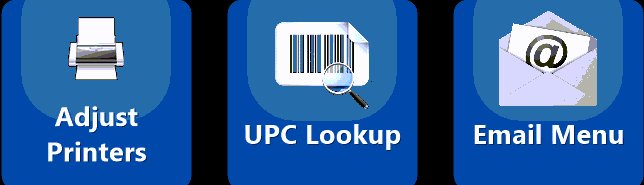
The  screen is used to quickly make changes to your printer routing should the need ever arise. You may need to reroute printers based on store volume or if there is a problem with a printer that needs to be bypassed:
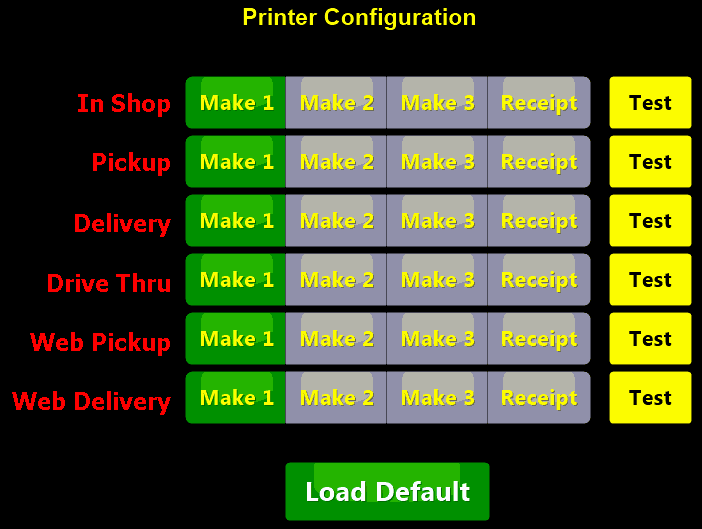
The Adjust printer screen will list out your receipt and expediter printers as well as the associated order Transaction Types. Use the grid to change the default print location for each Transaction Type as needed. You can also use the yellow TEST buttons to send a test print job to each printer to confirm operation.
To reset your printer configuration to its default settings use the 'LOAD DEFAULT' button to set the printers back to default routing that matches what was setup in the Printer Setup screen.
Quickly lookup menu items using the  screen:
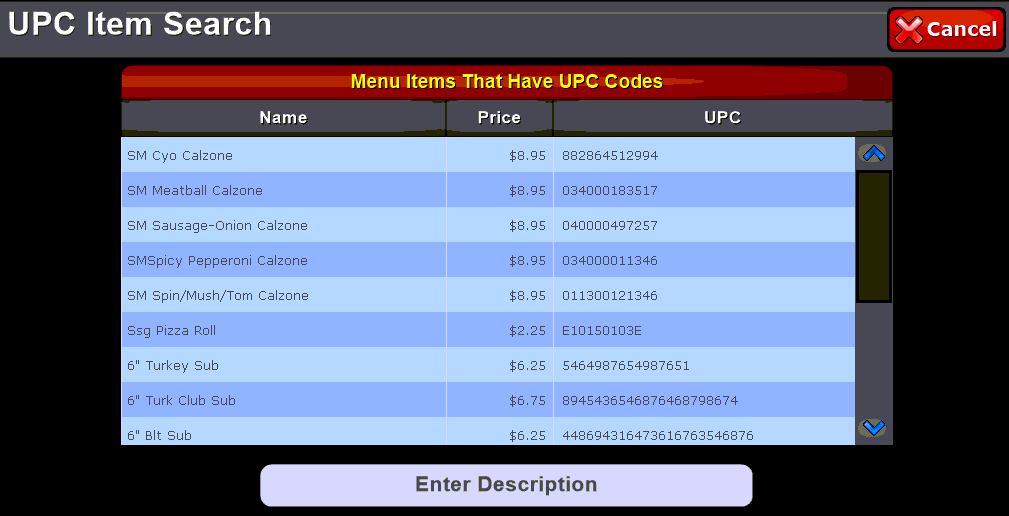
This screen allows you to quickly find and ring up items that have associated UPC codes. Type in the description of the item and select it from the list, this will return you to the order screen and place the item into the order pad. UPC codes are configured in the Menu Manager screen.
Accessing the  screen opens up an interface that allows you to email a copy of your menus to customers upon request:
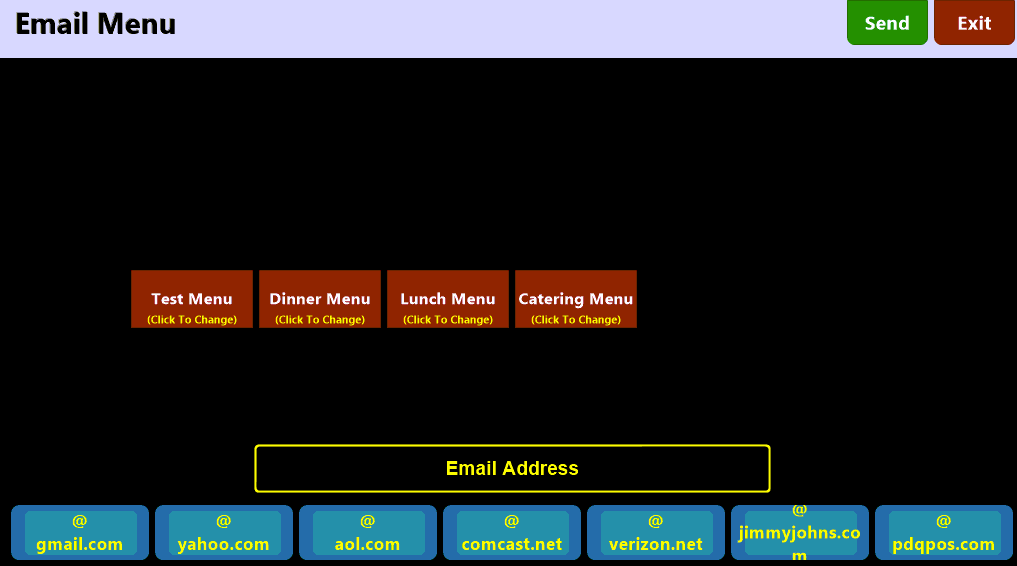
Select the menu that you want to send, enter the customer's email address and press the green SEND button.