Reservations
The reservations report replaces a physical reservation book and provides a clearly structured overview of all reservations ever made in PDQPOS. This list is particularly useful if you are looking for a specific reservation.
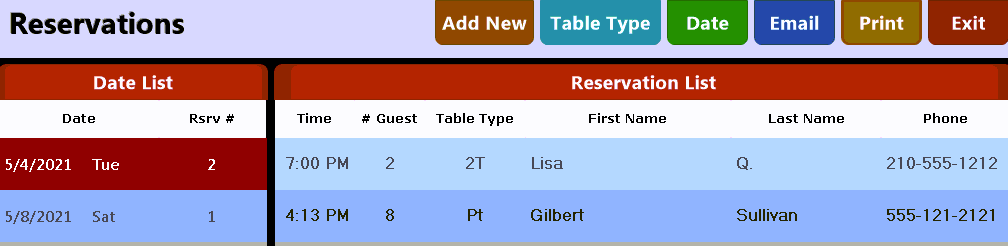
The main body of this application shows the currently held reservations listed out by date along the left side of the screen. In this section you can also see the day of the week the reservation was made for, as well as the number of reservations for the associated date.
The right half of the report shows the individual reservations for the day as well as expected time of arrival, number of guests, table type and contact information for the guest's party.
You can use the buttons to email or print out a copy of the reservation list or change the date range shown.
 - Used to add a new reservation to the system:
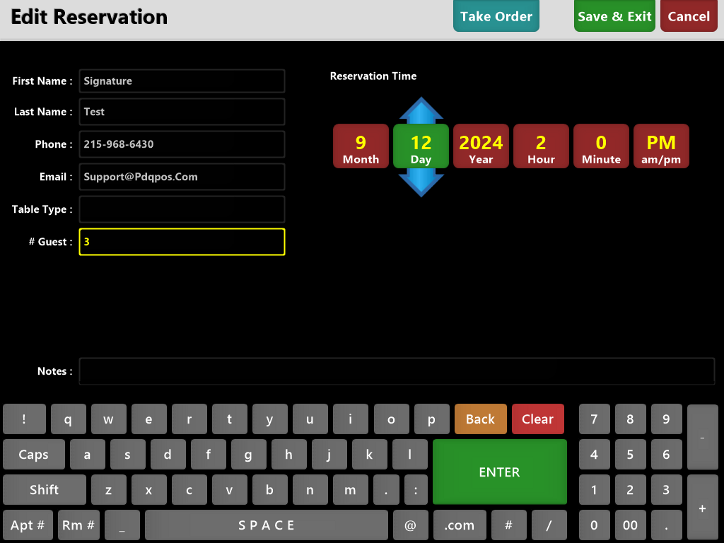
Enter the customer specific information as well as the date and time the reservation is being made for.
If the customer wishes to pre-order you can use the  button to enter an order.
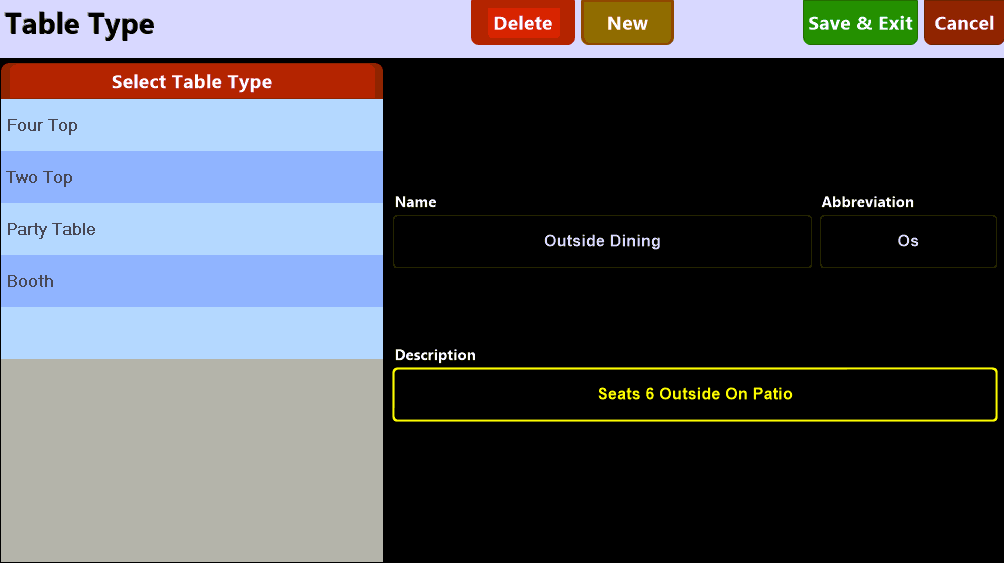
On the 'New Reservation' screen the  button is used to select or add a table type for the reservation: