Table Manager
The table manager screen is designed for access by a Floor or Hospitality Manager. While similar in appearance to the Seating Manager this screen allows you to perform additional functions not generally available to waitstaff:

Across the top of the screen is a legend showing you how to identify the various statuses of the tables in the section being viewed:

- Green: are assigned to you
- Red: are assigned to other staff (will show name of server assigned)
- Brown: unassigned \ available
- Gray: in process of being seated \ unavailable
all assigned tables show a counter in the upper left corner denoting how long the ticket has been open. This let's you scan your tables and tell at a glance where they are in the service queue.
Use the buttons along the bottom of the screen to change to different sections of your restaurant:

These sections are configured in the Table Settings screen.
Selecting any assigned table will bring up a list of available options for the table:

Some options require permissions to be set for the employee to access
Change Number of Guests: let's you change the number of guests at a table. You will be prompted to confirm new guest number:

Move Table: move table to a different one, Table being moved to must be unassigned and available:
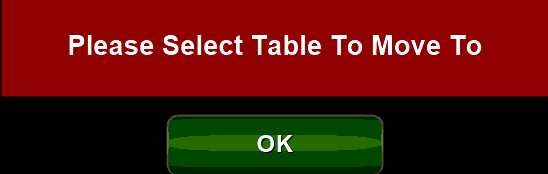
After selecting the OK button choose the table you wish to move the guests to and confirm your choice:

Open Table: opens the Ordering Screen for the table. This closes the Table Manager screen and opens the Seating Manager screen.
Combine Table: Moves the open check(s) from one table to another but leaves the guests at their respective tables. You may also need to adjust the number of guests at the 'new' table as well:

After selecting the OK button choose the table you wish to combine and confirm your choice:

Using the Blue arrows select which order to combine. This will void out one of the orders.
After making your selection you will be prompted to confirm:

You will also be asked to give a reason for combining checks:

After confirming the combination and providing a reason the table screen will reflect that the tables have been combined:

If the tables have been combined in error select the table marked "COMBINED" to un-combine the tables:

Change Server: Use to change the server assigned to the table:

You can choose one of the servers from the list or assign to a non-server if required. Use the buttons to filter between servers and all non-servers and between clocked in employees only or all employees.
Void Items: Allows you to void items from the open order, these are items that have already been sent to the kitchen printers and VDUs:

Select the item you wish to void from the order pad and press the  button to remove it from the order.

If a selected main item has a quantity greater than 1 you can also modify the quantity by selecting the item first and next selecting and inputting a new quantity.
Void Order: void out the entire order for the table by selecting this option:
