Tabs
With a tab transaction, you start the transaction, enter the menu items but unlike a cash transaction, however, you do not close the ticket and it remains open for you add more items or edit the existing items.
To open a new tab select the  button located along the right hand side of the screen. This button is only visible while an order is open.
Enter a name of descriptor for the tab, this information will appear on receipts:

Once a Tab has been created you can recall it for payment or to add additional items by selecting the Recall Tab button and choosing from your open tabs:
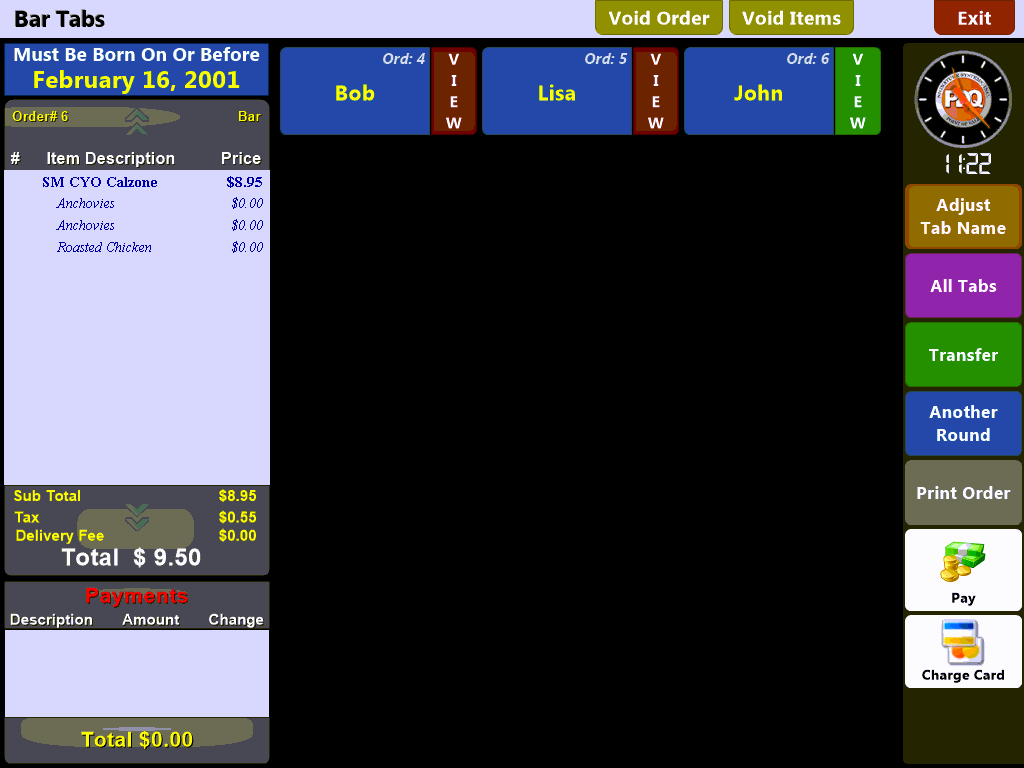
With appropriate permission levels you can void an item or an entire order using the  buttons located at the top of the screen.
You can filter the Tabs screen by choosing the  button to toggle between:
- Your open tabs
- The register's tabs (in the event there are 2 drawers on 1 terminal and 2 assigned bar tenders using that terminal.)
- All open tabs from any register in the system.
This allows you to assist another server's customers as needed. You can also change the name associated with the tab if the need arises.
Select the Tab you wish to edit by clicking on it. This will bring up a list of options along the right hand side of the screen allowing you to pay the order by cash or credit, void out all or individual items or transfer the tab to a table or stool.
You can also repeat a previous round by using the 'Another Round' feature.
You can also select an item in the order pad and change quantities directly from this screen by using the  buttons.